We specialise in empowering private clients to navigate their planning applications / development applications with confidence and ease, with the help of qualified traffic engineers experienced across major Australian cities.


Michael Lee, BEng

Benny Chen, MEngSc
Our qualified traffic engineers deliver the following services:
- Traffic Impact Statement (TIS) by experienced traffic engineers.
- Traffic Impact Assessment (TIA)
- Traffic Guidance Scheme (TGS) – Sydney Only
- Traffic Control Plan (TCP) – Sydney Only
- Traffic Management Plan (TMP) – Sydney Only
- Pedestrian Management Plan (PMP) – Sydney Only
- Car Parking Demand Assessment
ML Traffic Engineers
Unlock seamless planning approvals with expert traffic engineers and traffic engineering knowledge that drive your development forward – since 2005. Empower your project with a traffic engineer that delivers.
Over 10,000 sites transformed – Tailored assessments, innovative designs, and unmatched compliance expertise. From traffic impact assessments to deep knowledge of car parking demand, we navigate regulations so you can build with confidence. Proven traffic engineering consultants: SIDRA, AutoTURN, and Austroads-Compliant Strategies for Every Land Use.
At the heart of our mission is a commitment to empowering private clients with their development applications. If you’re in search of a trusted traffic engineer, transport consultancy and traffic engineering service that truly stands out, don’t hesitate to connect with one of our expert traffic engineers today.
Our talented key personnel are complemented by a dynamic team of traffic engineers and skilled technicians, including drafters and surveyors, all dedicated to your success. Each of our consultants holds at least a Bachelor’s degree in Civil Engineering, ensuring top-notch expertise. Our senior traffic engineers Mike and Benny each bring 30–40 years of hands-on experience. The traffic engineer who provides your initial quote will be the same professional overseeing your project, guaranteeing a seamless experience from start to finish.
We proudly hold NPER and RPEQ registrations, reflecting our unwavering dedication to excellence. Our comprehensive understanding of traffic engineering spans from intricate grassroots issues to expansive strategic planning needs.
We are excited to partner with you on your upcoming project. Get your free quote today – empower your project now! Connect with our traffic engineers – navigate approvals with ease. Be sure to check out our ARTICLES, RESOURCES and VIDEOS for insightful resources and inspiration.
At ML Traffic Engineers, we bring a wealth of experience to every type of land use that may necessitate a traffic impact statement or assessment. Whether it’s apartments, bars, car washes, cafes and restaurants, child care centres, catteries and dog kennels, churches, community centres, drive-through coffee kiosks, drive-through fast food outlets, fitness centres and gymnasiums, food trucks, or galleries, we’ve got you covered. Our expertise extends to hotels and motels, industrial units and subdivisions, licensed premises such as gaming halls and taverns, medical centres, mixed-use sites that blend residential and commercial spaces, mosques, night clubs, offices, personal training studios, places of worship, recreational facilities, residential subdivisions, master plans for schools, service stations, shops, shopping centre developments, supermarkets, temples, transport terminals, tuition centres, townhouses, and warehouses.
We also specialise in preparing swept path diagrams using AutoTURN, ensuring that your design vehicle can seamlessly enter, manoeuvre internally, and exit the site in a forward direction, which is often a requirement for planning approval. Our comprehensive turning templates cater to cars with B85 and B99 dimensions, as well as rigid trucks of all sizes and articulated vehicles including semi-trailers, B-doubles, and road trains. With access to an extensive international vehicle dataset, we can assess vehicles that closely match your specific testing needs. Don’t forget to explore our ARTICLES, RESOURCES and VIDEOS for more insights.
Our unwavering commitment to excellence means that every project is customised to meet your unique requirements. We take pride in delivering innovative solutions that enhance traffic flow and safety. With a dedicated team of traffic engineers by your side, we are here to navigate the complexities of traffic engineering and planning, ensuring your project is not only compliant but also optimally designed for success.
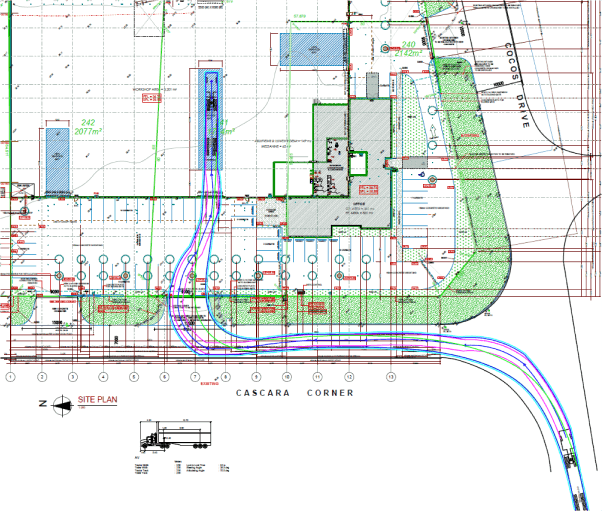
At ML Traffic Engineers, we specialise in assessing and providing expert design input on access, parking, on-site vehicle manoeuvrability, and site servicing layouts, all in accordance with AS 2890.1 and AS 2890.2 standards. Our team illustrates essential changes using CAD, streamlining the process for architects and building designers, allowing them to seamlessly integrate our recommendations into their plans. For our clients in NSW and Sydney, we offer comprehensive preparation of traffic guidance schemes (TGS), formerly known as traffic control plans (TCP), as well as traffic management plans (TMP) for construction-related traffic, pedestrian diversions, and both partial and full road closures. We also deliver tailored vehicle access advice and design solutions, including turn lane treatments based on the warrants outlined in the Austroads Guide to Road Design Part 4A.
Our hands-on approach is the cornerstone of every traffic engineering project we undertake. With Mike and Benny, our key traffic engineers, each boasting 30 to 40 years of invaluable experience, we are well-equipped to provide insightful input on traffic engineering matters from the initial feasibility stages right through to planning application submissions. When necessary, we also offer expert witness representation at planning court and tribunal hearings, with Mike having represented clients at VCAT on numerous occasions. Benny brings extensive expertise in preparing traffic guidance schemes (TGS) formerly traffic control plans (TCP), ensuring that our senior traffic engineering staff is involved in every project. We invite you to explore our ARTICLES, RESOURCES and VIDEOS, where you can discover more about our commitment to excellence.
At ML Traffic Engineers, we leverage cutting-edge technology and innovative methodologies to deliver solutions that enhance traffic flow and safety. Our collaborative approach builds strong relationships with local councils and stakeholders, ensuring that every project is delivered seamlessly. Trust us to navigate the complexities of traffic engineering and site servicing with precision and professionalism. We are traffic engineers covering Melbourne, Sydney, Brisbane, Gold Coast, Hobart, Perth, Adelaide, Darwin and surrounding areas.
What services do ML Traffic Engineers offer for development projects?
ML Traffic Engineers provide a comprehensive range of services including traffic impact statements, assessments, traffic guidance schemes, traffic management plans, pedestrian management plans, vehicle swept path analysis, parking surveys, car parking demand assessments, and expert advice on site access, parking, manoeuvrability, and site servicing layouts, all in accordance with Australian standards.
How experienced are the traffic engineers at ML Traffic Engineers?
The key personnel at ML Traffic Engineers, including Mike and Benny, each have between 30 and 40 years of experience, and all team members hold at least a Bachelor’s degree in Civil Engineering. They bring over 30 years of combined expertise to every project.
What types of land use projects do ML Traffic Engineers cater to?
ML Traffic Engineers have extensive experience with a wide variety of land use projects including residential developments, commercial buildings, retail centres, industrial sites, educational institutions, places of worship, hospitality venues, and more, ensuring tailored traffic solutions for each.
What technology and standards do ML Traffic Engineers utilize in their projects?
ML Traffic Engineers utilize advanced technology such as AutoTURN and SIDRA for vehicle path analysis and intersection assessment, and adhere to standards such as AS 2890.1, AS 2890.2, and Austroads guidelines to ensure compliance and optimal design.
How can I contact ML Traffic Engineers for a consultation or quote?
You can contact ML Traffic Engineers by phone or email through the details provided on their website, or by filling out the contact form available. They offer free quotes and are ready to assist with your development application needs.